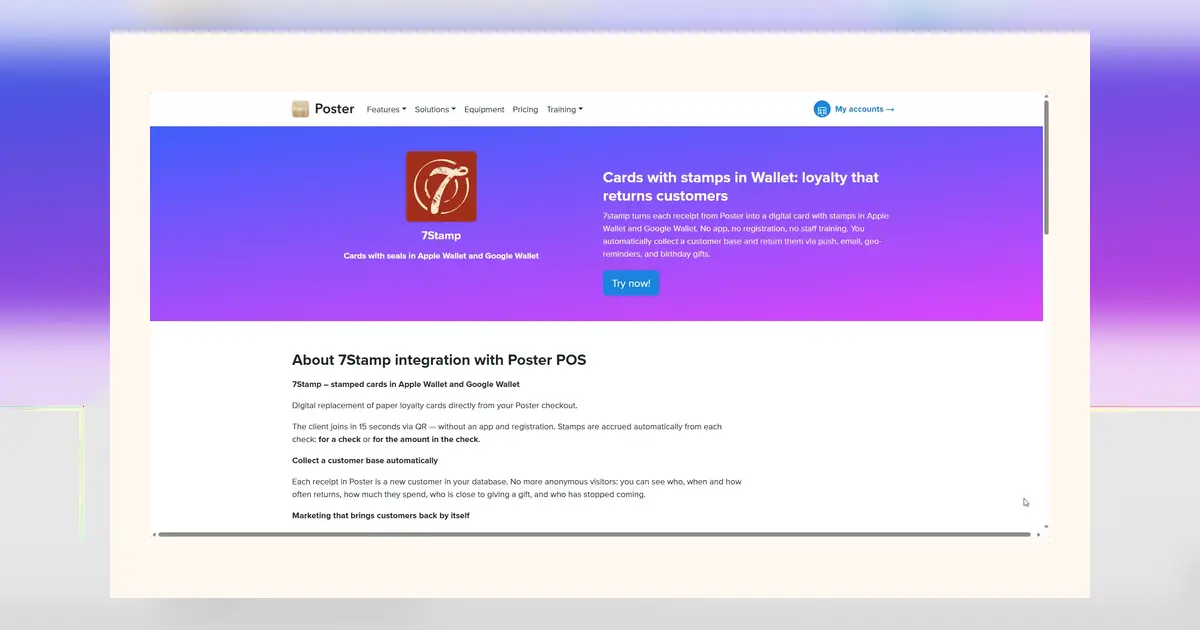
Paper punch cards are fading, but the first digital decision still stalls many operators: how should customers get a Stamp at the counter? This guide compares 7stamp’s four workflows—Staff Scanner, Self-Service Kiosk, Autopilot, and Receipt QR—through an operations lens, so you can launch a Zero Integration Card quickly, without reworking your POS or checkout flow.
Quick workflow picker
Use these high-level matches to narrow your choice. You can run more than one workflow across locations or dayparts, but start with the one that best fits your busiest moments.
- Peak rush with staffed tills and fast handoffs: choose Staff Scanner for speed and control.
- Solo-operator shifts or compact counters: choose Self-Service Kiosk to let customers self-stamp.
- Hands-free, queue-friendly stamping where taps are natural: choose Autopilot with a compatible NFC reader.
- Delivery, takeaway, or mobile-only stalls: choose Receipt/Delivery QR to add a Stamp from the receipt or bag.
What each workflow looks like in practice
Staff Scanner
Staff keep a 7stamp scanner screen open on a phone or tablet. After payment, they ask the customer to show their Wallet Card and scan to add a Stamp. Joining is instant: place a join QR at the till so new customers can save the Card to Apple Wallet or Google Wallet while queuing. This flow fits busy counters that already manage quick verbal prompts.
Self-Service Kiosk
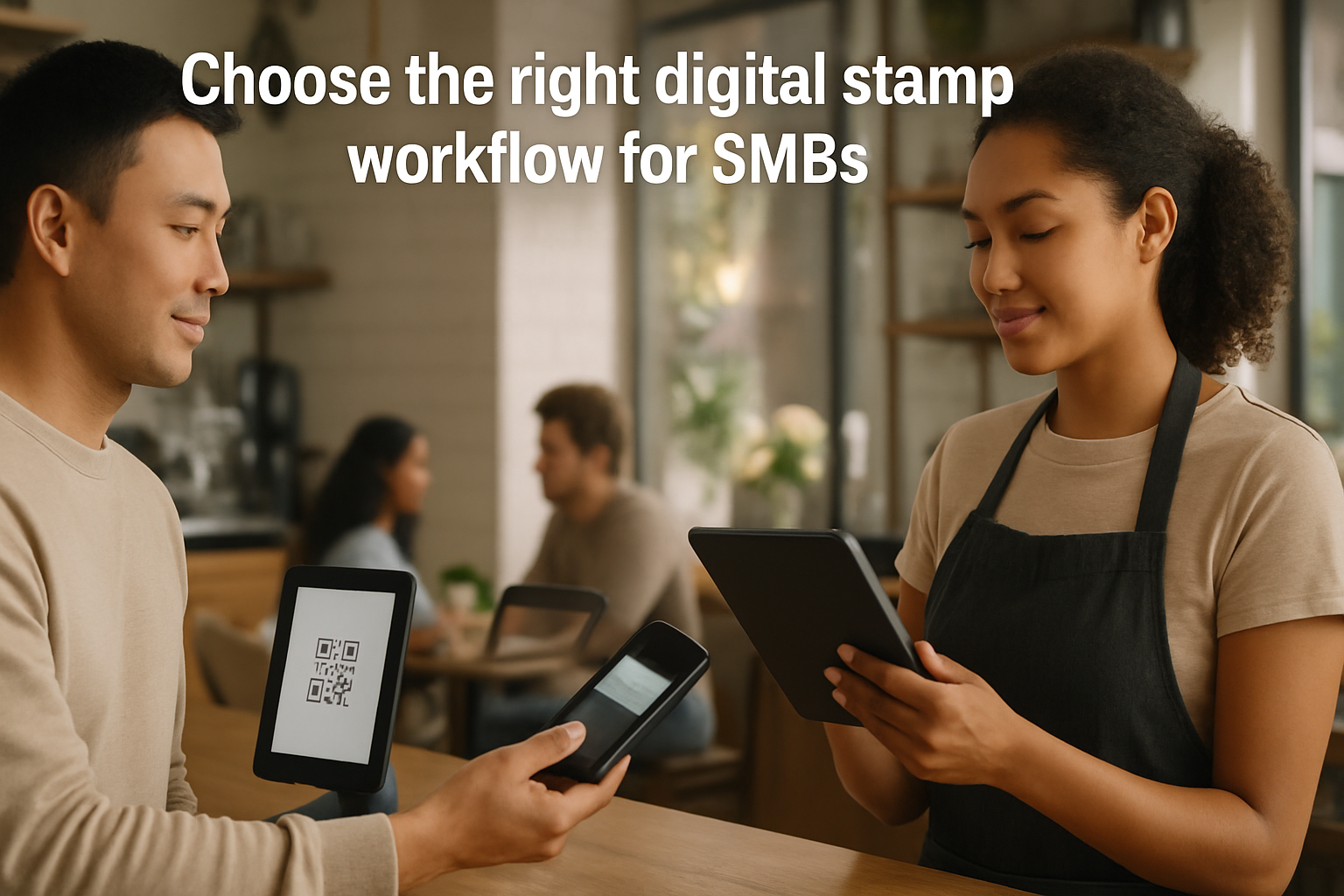
A small tablet on a stand runs the kiosk screen. Customers scan their Wallet Card (or the on-screen QR) to add a Stamp themselves while you finish the handoff. Put the kiosk within reach of the pay area and a join QR at eye level on the stand. Use short signage (“Scan here for your Stamp”) so self-serve becomes muscle memory without staff intervention.
Autopilot
Place a compatible NFC reader at the counter. Customers tap their Apple Wallet or Google Wallet Card; the system adds a Stamp with no button presses. Keep a join QR at the reader so first-timers can save the Card, then tap. Autopilot shines when you want minimal screen time at the till and a consistent tap gesture during peak hours.
Receipt/Delivery QR
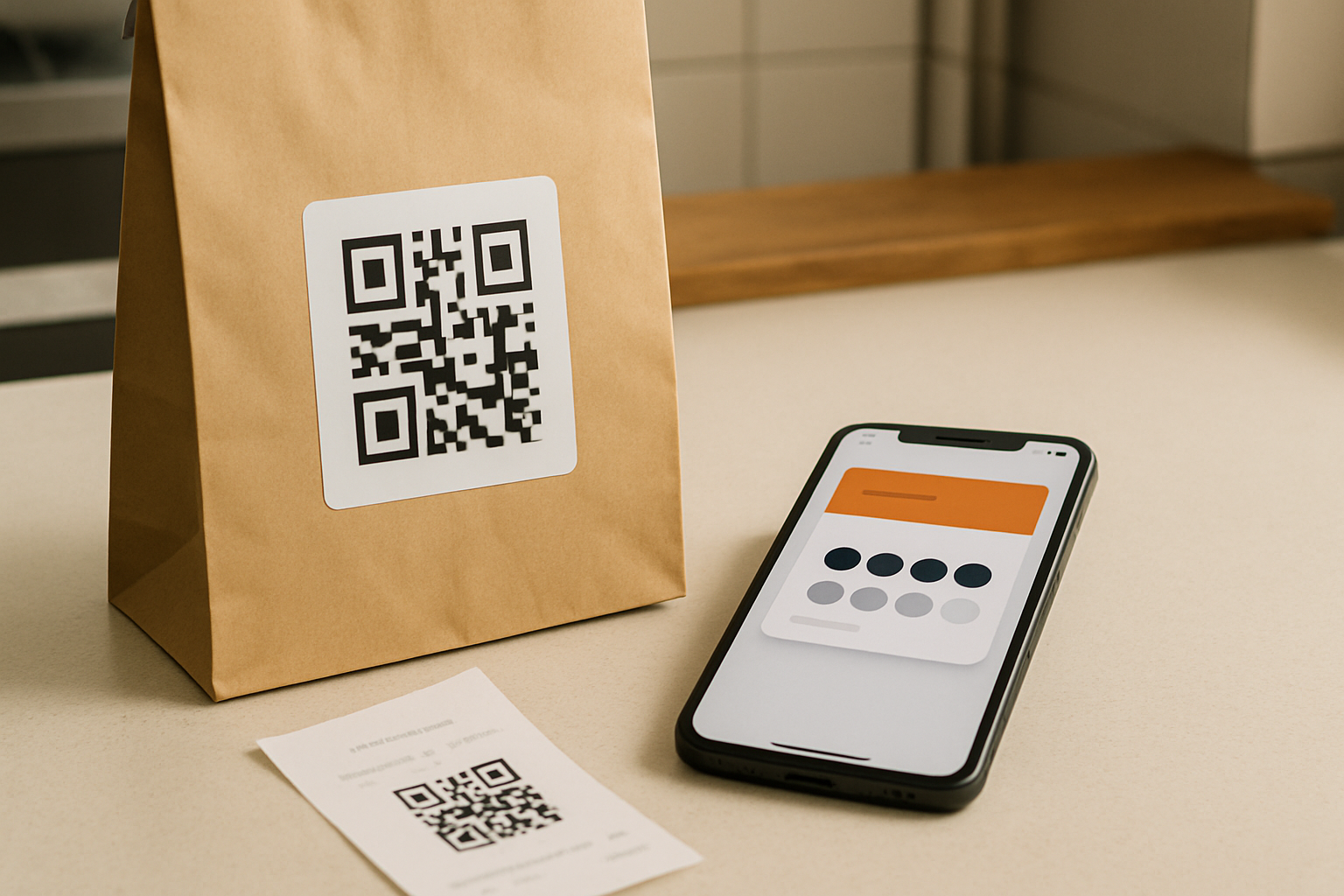
Print a QR on receipts or add a QR sticker to takeaway bags and delivery packaging. Customers scan the code after pickup to add a Stamp. Display a join QR near the pickup zone so new customers can save the Card first. This is ideal for window service, curbside, food trucks, or any flow where the receipt or bag is the most reliable touchpoint.
Hardware and space: minimal checklists
Staff Scanner: one phone or tablet with a reliable camera and stable stand (optional). Keep it near the card machine, with brightness up to avoid glare on reflective Wallet screens. A charger within reach prevents battery dips during rush.
Self-Service Kiosk: a small tablet, lightweight stand, and counter space within customer reach. Angle the screen to reduce reflections, and add a simple topper sign. If your area is bright, consider a matte screen protector to improve scanning.
Autopilot: a compatible NFC reader positioned next to the card machine for a natural tap flow, plus power and tidy cable management. Keep the join QR adjacent to the reader so first-timers can save, then tap in one movement.
Receipt/Delivery QR: your existing receipt printer or pre-printed QR stickers for bags. Position a small sign at pickup reminding customers to scan for a Stamp. Ensure the QR is large enough to scan quickly under low light.
Lean setup with Zero Integration
Zero Integration means you do not touch your POS. In 7stamp, create your Card, set the Stamp reward logic, and pick your workflow mode (Staff Scanner, Self-Service Kiosk, Autopilot, or Receipt QR). Configure Smart Vouchers or Redeem Codes for rewards, publish your join QR/link, and print or display it at the counter and pickup points. Customer-facing pages are available in 54 languages.
Customers join without an app: they scan your join QR or tap your link and save the Card to Apple Wallet or Google Wallet. On compatible NFC readers, Apple Wallet (Apple VAS) and Google Wallet (Google Smart Tap) enable fast taps. You can start on Free Forever (up to 100 stamps/month) and upgrade later (€29/month or €290/year per location/login).
Fraud controls by workflow
Define a clear per-visit stamping norm (e.g., one Stamp per paid visit) and communicate it on signage. Staff Scanner centralizes control with staff; Kiosk and Autopilot shift to process control, so place devices where actions are observable. With Receipt QR, limit public exposure of the code and refresh printed assets periodically if abuse is suspected.
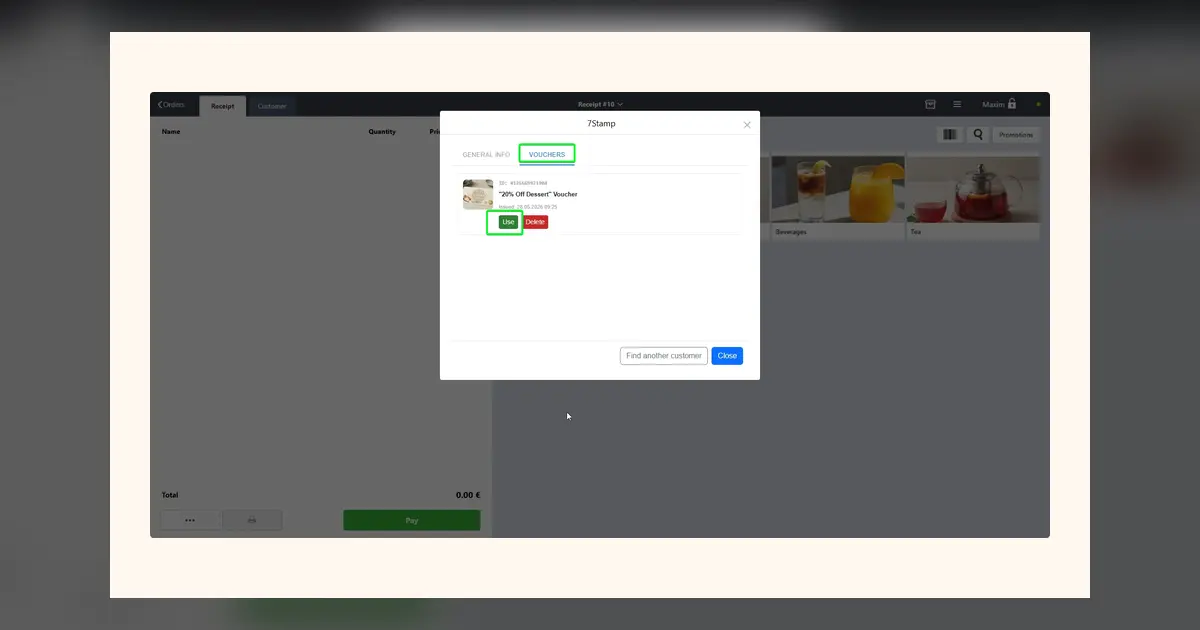
Use staff permissions to keep stamping access to trusted logins. Issue rewards through Smart Vouchers or Redeem Codes at redemption, not at stamping time. In your account, review stamp history to spot anomalies (unusual volume at odd hours, repetitive back-to-back activity) and adjust signage, scripts, or QR placement accordingly.
Day-one operations and light measurement
Signage should be blunt and brief: “Scan to join,” “Show Card for a Stamp,” or “Tap here for your Stamp.” Coach a one-line script for staff (“Do you want a Stamp in your Wallet?”). For glare, tilt screens slightly and bump brightness. Keep chargers handy; if a device dies mid-rush, ask the customer to scan the join code and issue a make-good via a Redeem Code at their next visit.
Watch three signals in your account during week one: Card adds (is your join QR visible?), stamp activity (are staff or customers using the flow you chose?), and reward redemptions (are rules clear?). Tweak placement, wording, or reader position, then re-check the same signals the following week. You’re iterating operations, not launching a software project.
Conclusion: Pick the workflow that matches your busiest reality, place clear join and action prompts where hands already move, and keep controls simple. With Zero Integration, you can launch in a single shift, then fine-tune signage and scripts as data comes in. Start small, make it obvious, and let the Card earn its spot at your counter.