
Guide
Activate an Access Code, assign packages to your own business or a client, and understand why package limits refresh every month instead of accumulating.
An Access Code is a prepaid, card-free way to pay for 7stamp. Each Access Code contains one or more Packages, and every Package bundles platform resources: Staff Seats, Card Operations, and Marketing Notifications. You activate a code in Billing & invoices, then assign its Packages either to your own business or, if you are an agency, to your clients’ businesses.
Who Access Codes are for
Access Codes are for two groups: partners who distribute prepaid 7stamp resources, and businesses that activate a code for their own account. In both cases, the code lets 7stamp work without attaching a card first.
Marketing agencies, integrators, and resellers
Agencies and integrators can buy Access Codes in bulk, split them into Packages, and assign prepaid resources to the clients they serve. The agency keeps control of the client relationship and decides which client gets which Package.
End businesses, including LTD and SaaSMantra buyers
An end business can activate a single code it received from a local 7stamp partner, directly from 7stamp, or as a lifetime deal from a marketplace such as SaaSMantra or DealFly. This is the simplest way to run 7stamp without attaching a personal or corporate credit card.
What is inside an Access Code?
An Access Code contains one or more Packages, and each Package is a prepaid bundle of platform resources. A Package can include:
- Staff Seats - staff logins or physical scanning workstations, such as a bar counter, kiosk tablet, or cash register.
- Card Operations - transactions that count toward your quota, such as issuing a stamp, issuing a voucher, or redeeming a voucher.
- Marketing Notifications - the monthly allowance of push, email, or messenger sends.
- Optional add-on services - some Packages can also bundle modules such as auto-translation or integrations.
Example Package, for illustration only: 1 Staff Seat, 2,500 Card Operations, 10,000 Marketing Messages, valid for 1 month. Real Package contents vary by code, so always check your specific code inside Manage Access Codes.
How to activate an Access Code
There are two ways to activate an Access Code. Both end with the code’s Packages becoming available to assign.
Method 1 - direct activation link
If your partner or 7stamp emailed you a direct link, open it. The system takes you to the activation screen and pre-fills the code for you. You only need to be logged in.
Method 2 - from the business panel
- Log in to admin.7stamp.com.
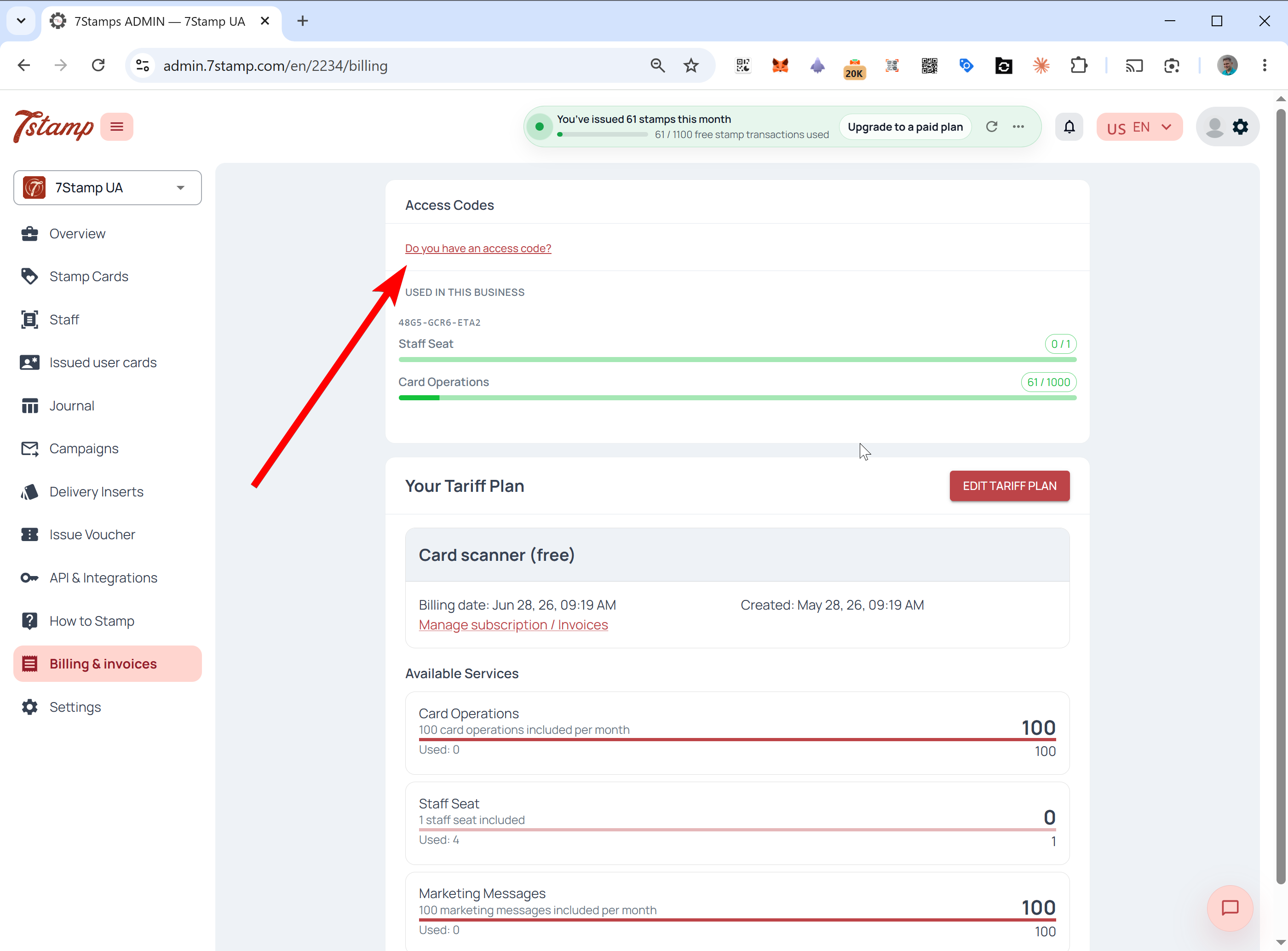
- Open Billing & invoices from the side menu.
- Click Do you have an access code? near the top of the page.
- Type the code into Enter code and press Activate code.
- Confirm. The code’s Packages now appear as available to assign.
Assign resources after activation
After a code is activated, you decide where its Packages go. You can assign them immediately or return later because the activated code stays in your panel until you use its available Packages.
Scenario A - use it for your own business
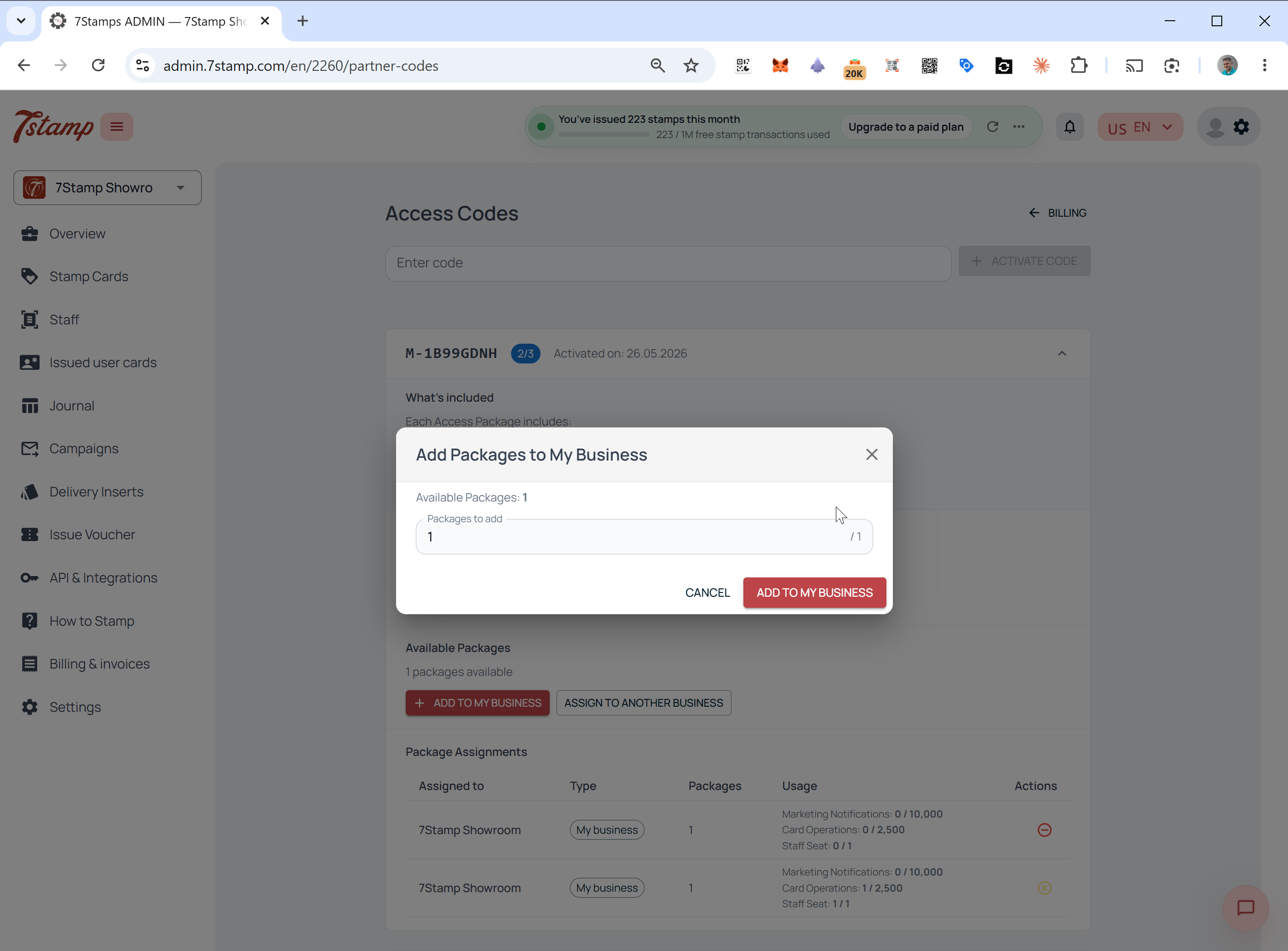
To put a Package to work in your current account, click Add to my business, choose how many available Packages to add, and confirm. The Package’s limits start applying to your business right away.
Scenario B - assign to a client
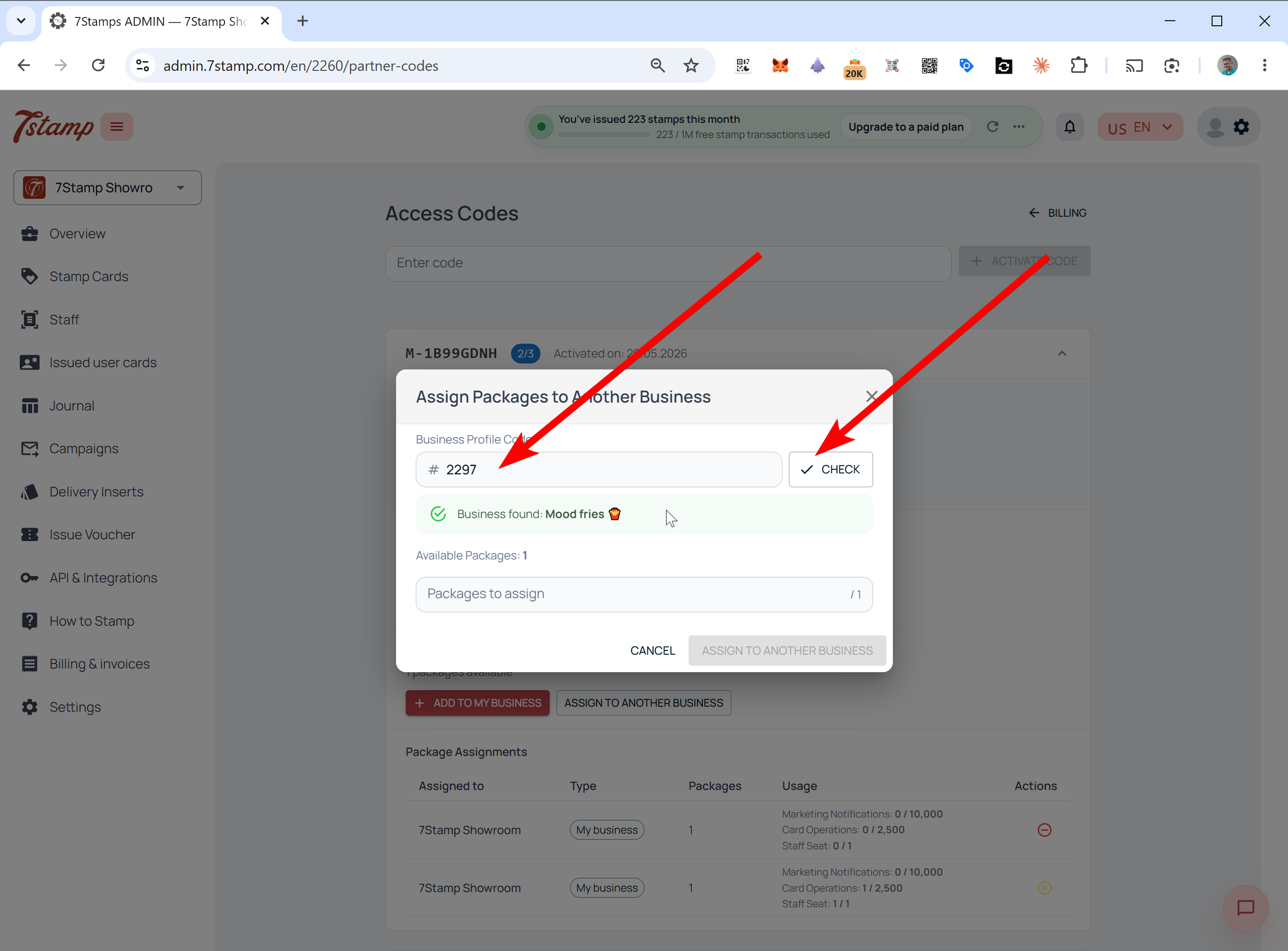
- Click Assign to another business.
- Enter the client’s Business Profile Code.
- Press Check. The system looks up the account and shows the Business Name.
- Confirm it is the right business, choose how many Packages to assign, and confirm.
Where a client finds their Business Profile Code
If a client does not know their Business Profile Code, ask them to log in to the 7stamp admin and look at the top-left business switcher. The current business ID is shown under the company name; they copy it and send it to the agency or partner.
How a business sees a received package
When a Package is assigned to a business, it appears in that account immediately. The business sees the code whether it assigned the Package itself or an agency assigned it on its behalf.
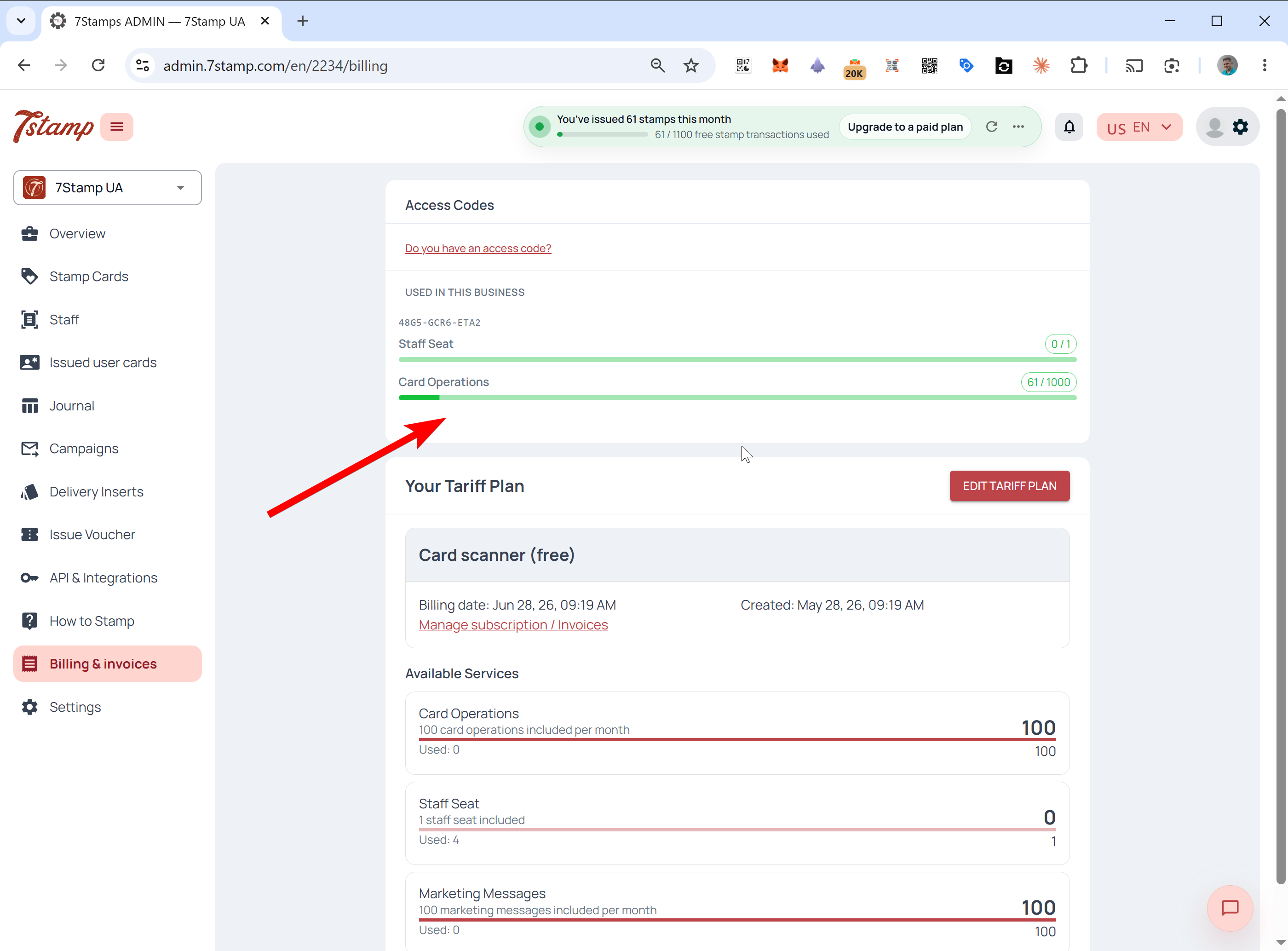
Open Billing & invoices. A dedicated block appears above the main tariff plan, showing the Access Code number and live usage bars for Staff Seats, Card Operations, Marketing Notifications, and any other included resources. These resources are consumed with priority and tracked separately from base billing.
The Manage Access Codes panel
Code owners get a dedicated control panel. It is most useful for agencies running several clients from one code.
To open it, go to Billing & invoices and click Manage Access Codes.
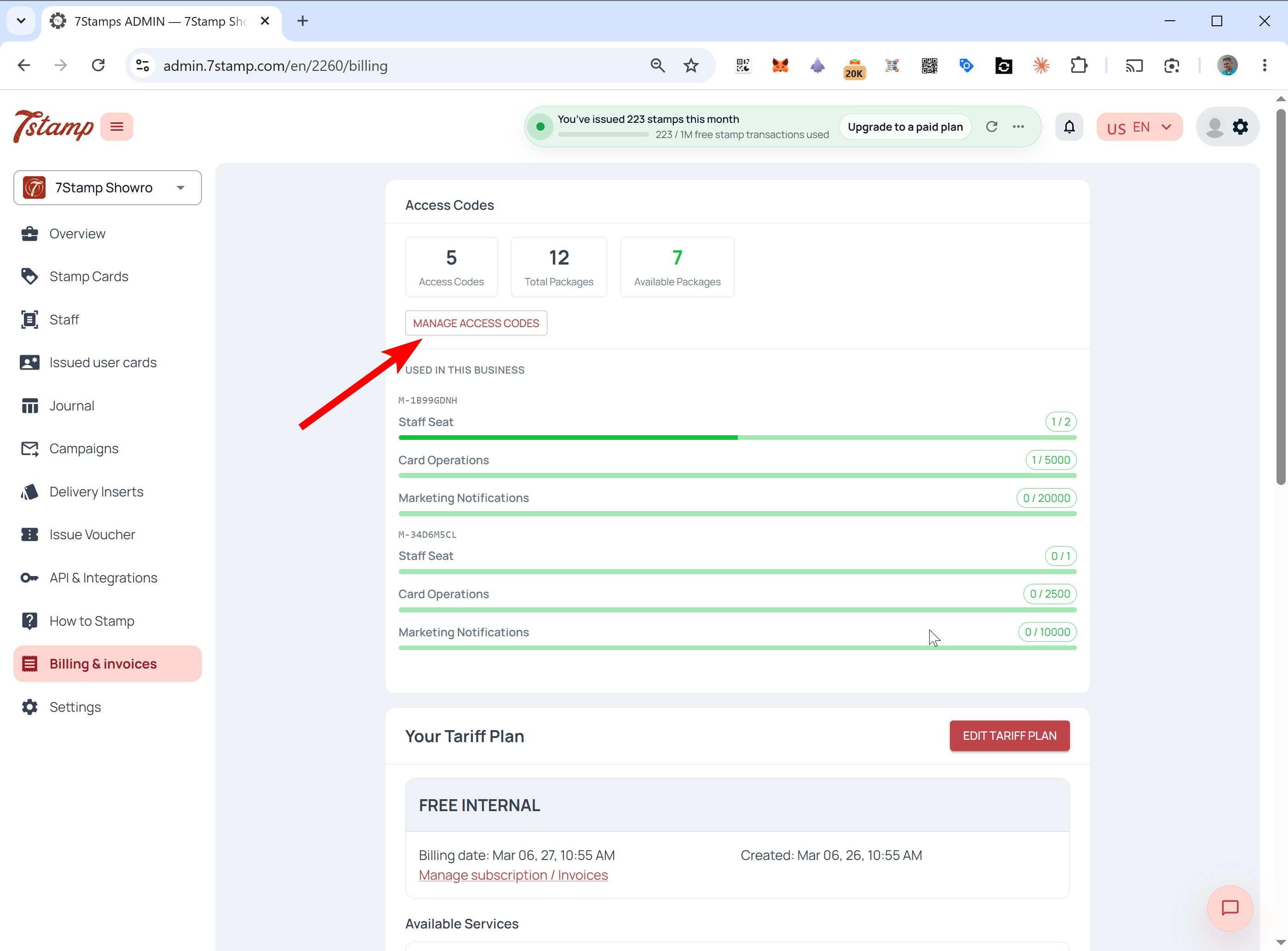
Inside, you see a summary of Access Codes, Total Packages, and Available Packages. For each code, the panel shows which Packages it holds, what each Package contains, how many are assigned, which are still Available, which businesses they are assigned to, and each Package’s current status.
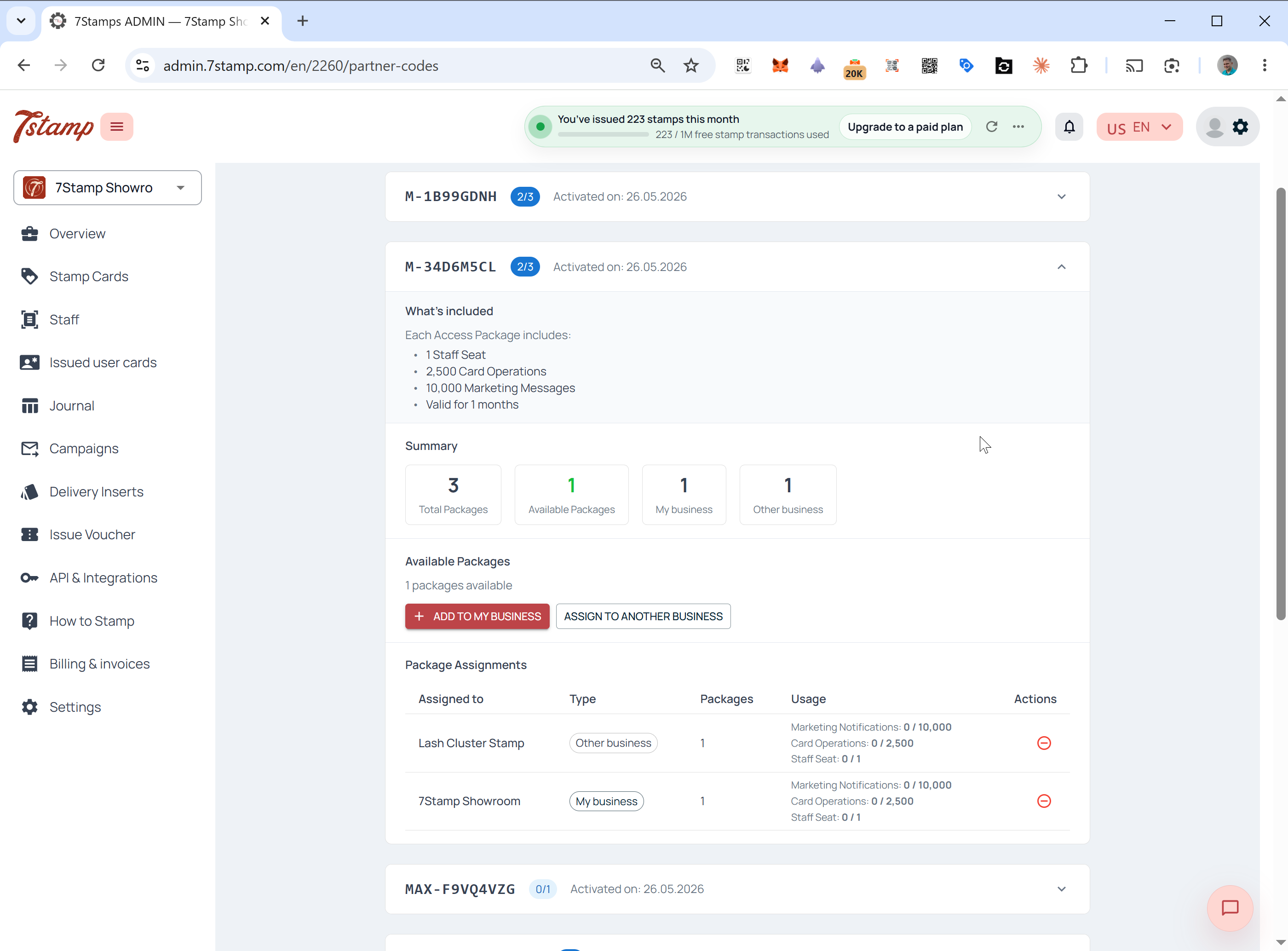
For example, one Access Code with three Packages might show one Package on your own business, one on a client, and one still Available for assignment.
Reassigning, revoking, and pausing packages
Once a Package is assigned, what you can do with it depends on whether it has been used. Unused Packages can be corrected; used Packages are locked for their term.
Revoke and return to Available
You can pull a Package back and return it to Available only if it has not been used yet. That means no card scans, no stamps, and no marketing messages have been processed on it. After even a single operation, the assignment is locked to that business for the Package’s term and cannot be reassigned.
Pause
If a Package is already in use but you need to stop a client’s access temporarily, open Manage Access Codes, find the Package, and press Pause. The client’s prepaid limits are blocked until you un-pause the Package.
Package lifespan and monthly limits
Packages can be lifetime or fixed-term, and the monthly reset behavior is the same for both. A Lifetime package keeps refreshing for as long as 7stamp operates and you follow the terms of use. A Fixed-term package is valid for a set period, such as 6 or 12 months.
In both cases, the limits inside the Package reset and refresh every month; they do not accumulate. For example, a Package that includes 1 Staff Seat and 1,000 Card Operations per month refreshes that same allowance every month for the whole life of the Package.
How Access Codes work with your tariff plan
Access Codes always take priority over your base tariff plan. The system spends the code’s prepaid resources first and only falls back to your plan when the code is exhausted or exceeded.
For the exact consumption order and what happens at overflow, read Access Codes vs tariff plans: billing priority explained.
Frequently asked questions
What is a 7stamp Access Code?
An Access Code is a prepaid, card-free way to pay for 7stamp. Each code contains one or more Packages that bundle Staff Seats, Card Operations, and Marketing Notifications. You activate it in Billing & invoices and assign its packages to your own business or to clients.
Do Access Code limits accumulate or roll over each month?
No. Access Code package limits refresh every month and do not accumulate. Unused Card Operations, Staff Seats, or Marketing Notifications are not carried over to the next month.
Does a lifetime or SaaSMantra Access Code give unlimited resources?
No. A lifetime package means the same monthly limits refresh every month for as long as 7stamp operates. It is not a one-time lump sum or an unlimited stockpile.
How do I activate an Access Code?
Either open the direct activation link from your partner or 7stamp email, or log in to admin.7stamp.com, go to Billing & invoices, click Do you have an access code?, enter the code, and confirm.
Can an agency assign a package to a client's business?
Yes. In Manage Access Codes, click Assign to another business, enter the client's Business Profile Code, press Check, confirm the business name, choose the number of packages, and confirm.
Can I revoke a package after assigning it?
Only if the package has not been used yet. Once any card scan, stamp, or marketing message has been processed on it, the assignment is locked for the package term. A package already in use can be paused but not reassigned.